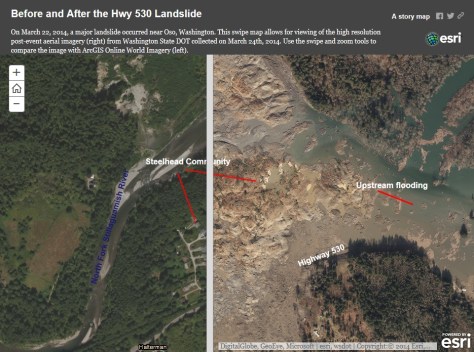
I did not know how big this was. The slide happened in Snohomish County, Washington. Check out the article and the map with a slider.
SDE Geodatabase Feature Class: Where is the Modified Date?
Have you ever tried using ArcCatalog to look at a listing of your feature classes in an SDE Geodatabase to see when they were modified, only to be disappointed that no dates are displayed? I was:
If you’ve been around a while, remember that 1984 Wendy’s commercial with the old lady that kept saying “Where’s the beef?”:
Yeah ESRI, where’s the beef? You do this for a File Geodatabase:
Why not for SDE? Sure, I can use versioning and look for the date that way, but we are a small GIS shop here and only a few people do the editing anyway. What to do?
After talking with our friendly Oracle DBA, searching through some system tables, searching the ArcPy classes, and working on a SQL query, I finally came up with a nice Python script that will pull out the SDE Geodatabase feature classes (they are just tables) and list the creation and modification dates. The info is also saved to a CSV file so you can open it up in Excel.
Here is the script, free for you to use. ** See update 12/4/2017 in comments section **
# ---------------------------------------------------------------------
# get_sde_date.py
# Created on: 3/26/2014
# By: Michael A. Carson, GIS Manager, City of Burbank GIS
# Description: Queries SDE GDB in Oracle to get feature class table dates.
# ---------------------------------------------------------------------
# Import modules
import arcpy,sys,csv
# Python environment
arcpy.env.overwriteOutput = True
# Local variables
sde_conn_file = r"H:\testdir\sde_gdb_connection.sde"
output_file = r"H:\testdir\sde_fc_tables.csv"
sql_statement = "select OWNER,OBJECT_TYPE,OBJECT_NAME,CREATED, \
LAST_DDL_TIME from DBA_OBJECTS where OWNER = 'GDB' \
and OBJECT_TYPE = 'TABLE'"
# Execute SQL statement and save table list
try:
# Make data path relative
arcpy.env.workspace = sys.path[0]
# Use valid SDE connection file to connect to SDE GDB in Oracle
sde_conn = arcpy.ArcSDESQLExecute(sde_conn_file)
print("=============================================\n")
print("Execute SQL Statement: {0}".format(sql_statement))
try:
# Pass the SQL statement to the database
sde_return = sde_conn.execute(sql_statement)
except Exception as err:
print(err)
sde_return = False
# If the return value is a list, display each list as a row
if isinstance(sde_return, list):
for row in sde_return:
print(row)
f = open(output_file, 'wb')
writer = csv.writer(f, delimiter=',')
writer.writerow(['OWNER', 'TYPE', 'NAME', 'CREATED', 'MODIFIED'])
writer.writerows(sde_return)
f.close()
print("Number of rows returned by query: {0} rows".format(len(sde_return)))
print("=============================================\n")
else:
# If the return value was not a list, the statement was most likely a DDL statement
if sde_return == True:
print("SQL statement: {0} ran successfully.".format(sql_statement))
else:
print("SQL statement: {0} FAILED.".format(sql_statement))
print("=============================================\n")
except Exception as err:
print(err)
Keep in mind this is for an Oracle SDE Geodatabase. I am also using ArcGIS 10.1. It will probably NOT work for SQL Server or PostgreSQL. Post a comment if you get it to work on those databases.
So how does this work? Looking at the local variables section, you need to change the value for the sde_conn_file and sql_statement. You can also change the output_file name if you want too.
# Local variables
sde_conn_file = r"H:\testdir\sde_gdb_connection.sde"
output_file = r"H:\testdir\sde_fc_tables.csv"
sql_statement = "select OWNER,OBJECT_TYPE,OBJECT_NAME,CREATED, \
LAST_DDL_TIME from DBA_OBJECTS where OWNER = 'GDB' \
and OBJECT_TYPE = 'TABLE'"
The script uses your SDE connection file to connect to the SDE Geodatabase … AS SDE. This is important. You must connect as the SDE user since the SDE user has privilages to read some of the Oracle system tables that store the info we want to extract. So where can you find your connection file? You probably used ArcCatalog to make your connection to the SDE Geodatabase. Here are some of mine:
They are listed under Database Connections in the ArcCatalog Tree. These connection files are located under your user directory (I’m assuming you are using Windows 7). I found mine located under here:
C:\Users\mike\AppData\Roaming\ESRI\Desktop10.1\ArcCatalog\
The connection files are named the same as you see them in ArcCatalog. I just copied the one that connects as the SDE user and copied it to my workspace for the script. If you don’t want to copy the file, just set the sde_conn_file variable to point to wherever it is. The nice part about using a connection file is that you don’t expose your SDE user password in the Python script.
Now the SQL statement:
sql_statement = "select OWNER,OBJECT_TYPE,OBJECT_NAME,CREATED, \
LAST_DDL_TIME from DBA_OBJECTS where OWNER = 'GDB' \
and OBJECT_TYPE = 'TABLE'"
Note the “\” is just a Python line continuation character that I used to make this fit in this blog (and still run in Python as you see it). Normally I would have the whole thing on one line! Anyway, here is where you want to modify the owner. I have an owner, the database user named GDB, that I use to create and modify some of our feature classes in the SDE Geodatabase. I want to pull out just those tables that are associated with user GDB. If you have more users that edit data, you can change the owner part of the SQL statement this way:
(OWNER = 'USER1' or OWNER = 'USER2' or OWNER = 'USER3')
Everything else should stay the same.
Now run your Python script. It should connect to your SDE Geodatabase using the ArcPy class ArcSDESQLExecute and your connection file, then execute the SQL statement, return a list of records with the owner name, object type, creation date, and date last modified, then write the list to the output CSV file. Here is the output when I ran my script:
And here is my CSV file:
The one thing I don’t like is the default date/time format Excel sets for the CREATED and MODIFIED column. To change it, I select both columns, right click to select Format Cells, then use a custom date/time setting like so:
You can pick from a list or enter what you want like I did. Much better!
Remember, everything that is listed is a table. Your feature classes are just tables as well. You might notice in your output that there are tables listed that are not feature classes, like indexes (_IDX$) and location tables for geocoding (_LOX). You could filter those out in your SQL statement. For me, I like to see everything.
You could also modify this script and run it as a scheduled task for a monthly report, thus helping you identify a volume of modifications to your data over time. Of course your friendly DBA could probably do that from the database side of things, but then you would not have fun doing this by yourself!
Please, if you modify the script to work with SQL Server or PostgreSQL, tell us how by posting a reply. Did I mention that before?
So there you have it, the ability to get at the modification date for feature classes in an Oracle SDE Geodatabase. Maybe ESRI will change it so we can see it in ArcCatalog in the next version? Time will tell. Enjoy. -mike
NASA-JAXA Global Rain and Snowfall Satellite
NASA and the Japan Aerospace Exploration Agency (JAXA) have released the first images captured by their newest Earth-observing satellite, the Global Precipitation Measurement (GPM) Core Observatory, which launched into space Feb. 27.
The images show precipitation falling inside a March 10 cyclone over the northwest Pacific Ocean, approximately 1,000 miles east of Japan. The data were collected by the GPM Core Observatory’s two instruments: JAXA’s Dual-frequency Precipitation Radar (DPR), which imaged a three-dimensional cross-section of the storm; and, NASA’s GPM Microwave Imager (GMI), which observed precipitation across a broad swath.
The GMI instrument has 13 channels that measure natural energy radiated by Earth’s surface and also by precipitation itself. Liquid raindrops and ice particles affect the microwave energy differently, so each channel is sensitive to a different precipitation type. With the addition of four new channels, the GPM Core Observatory is the first spacecraft designed to detect light rain and snowfall from space.
In addition to seeing all types of rain, GMI’s technological advancements allow the instrument to identify rain structures as small as about 3 to 9 miles (5 to 15 kilometers) across. This higher resolution is a significant improvement over the capability of an earlier instrument flown on the Tropical Rainfall Measurement Mission in 1997.
Click image below for more info.
Resources of the National Geophysical Data Center
A live training Webinar, “Resources of the National Geophysical Data Center,” will be offered on Wednesday, April 23, 2014.
Register today for “Resources of the National Geophysical Data Center.”
Start Time: 2 p.m. Eastern Time
Duration: 60 minutes
Speaker: Dan Kowal, Data Administrator at the National Geophysical Data Center
Summary: Dan will provide a background of one of NOAA’s three data archives that specializes in the scientific data stewardship of geophysical data that spans the surface of the sun to bottom of the seafloor. He will give an overview of the types of services available from the Data Center.
Learning Objectives: Participants will learn about the breadth of data disciplines covered by NGDC and the access tools available to query and retrieve data.
Registration is required. Space is limited on a first-come, first-served basis. Upon registering, an e-mail confirmation of registration will include instructions for joining the Webinar.
Registration confirmations for the Webinar will be sent from sqldba@icohere.com. To ensure delivery of registration confirmations, registrants should configure junk mail or spam filter(s) to permit messages from that email address.
FDLP News & Events is a service of the Federal Depository Library Program.
Name the Blimp
The next generation of the well-known Goodyear blimp is getting ready to take flight as the company moves toward replacing its old fleet of airships with a new trio.
The helium-filled airship, assembled at an Akron-area hangar and unveiled there, is bigger, quicker and more maneuverable than earlier models.
The 246-foot airship fits 12 passengers and has a semi-rigid internal skeleton, a feature that wasn’t present in earlier models and raises questions about whether it is truly a blimp, though the company still refers to it as such. The structure is covered by a silver, balloon-like body emblazoned with Goodyear’s yellow logo on a blue background.
It can travel at up to 73 mph and has custom computer-controlled avionics, an upgrade from the manual flight system used by the blimp pilots since the 1920s.
Every Goodyear blimp needs a name and, once again, the company is inviting the public to participate in a Goodyear “Name the Blimp” contest. Entrants over 18 years of age in the United States and Washington, DC can submit a name for the new blimp.
One name will be chosen from the entries and the contest winner (along with 5 guests) will have exclusive use of the Goodyear Blimp for a day (up to 6 hours). Nine lucky First Prize winners will receive a set of 4 Goodyear passenger or light truck tires.
If you win, the Grand Prize Blimp Ride will depart from a blimp-accessible location nearest the winner’s residence. If you live in SoCal, that would be at Goodyear’s Airship Base in the City of Carson.
Submissions for the contest will close on Friday, April 4. The winner will be announced on or around 45 days after May 9.
Click below to enter … don’t forget me if you win! -mike
Disneyland of Poop
USGS Beta Website
The USGS beta website just went online: http://beta.usgs.gov/ . Public comments can be submitted by clicking on the “SEND FEEDBACK” button floating in the lower right corner.
The main USGS website is still available at: http://www.usgs.gov/ .
The Edible Atlas
Google Announces JavaScript Maps API Support for GeoJSON
GeoJSON has emerged as a popular format for sharing location-based information on the web, and the JavaScript Maps API is embracing this open standard. This means, as a developer, you can now pull raw data from multiple data sources, such as the US Geological Survey or Google Maps Engine and easily display it on your website with this bit of code:
map.data.loadGeoJSON(‘earthquakes.json’);
Visit Google’s blog to read more about it.
Collector for ArcGIS 10.2.2
ESRI has released Collector for ArcGIS 10.2.2. It is available for both iOS and Android. This release introduces support for downloading maps to smartphone and tablet devices so that you can collect and update GIS features in the field where there is no data connection and then synchronize changes when connected. Nice! More information here.