Unknown's avatar

About socalgovgis - Michael Carson

Michael Carson, GIS Manager (retired) for the City of Burbank and President of Southern California Government GIS User Group. Currently teaching GIS at College of the Canyons in Santa Clarita.

Operating UAVs in US Airspace – The Legal Implications

The introduction of unmanned aerial vehicles (UAVs), or “drones,” into the U.S National Airspace System for commercial use raises a number of complex legal and policy issues. Understanding what is currently permitted is made more challenging by almost-daily reports of new court decisions, proposed regulations, possible executive orders and Federal Aviation Administration (FAA) approvals granted for certain restricted uses. This webinar will clarify the current status of UAVs in the United States and raise important future issues.

Energy Infrastructure with FEMA National Flood Hazard

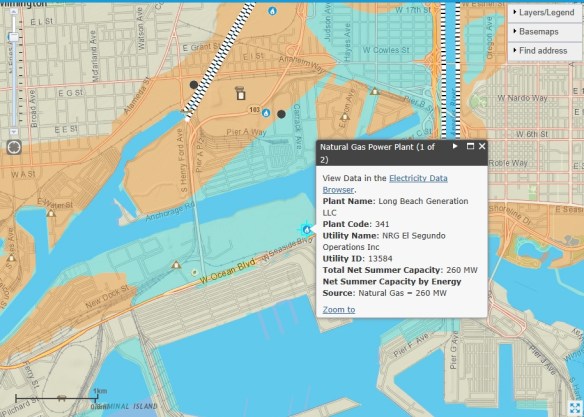
This week the US Energy Information Agency announced the availability of a new mapping tool that details the flood risk faced by our existing energy infrastructure. The map has icons located on sites like distribution terminals and power plants and allows users to overlay the existing flood risk on those sites. The clear message is that a lot of our infrastructure is already at risk.

floodapp

Flood hazard information from FEMA has been combined with EIA’s energy infrastructure layers as a tool to help state, county, city, and private sector planners assess which key energy infrastructure assets are vulnerable to rising sea levels, storm surges, and flash flooding.

Ventura College GIS Course

Ventura College GIS course starts soon.

Course Name: Introduction to GIS Software (GIS/GEOG 26)

Course Info: Monday and Wednesday evenings, 7-8:50pm. Starts August 16th. Ends October 17th. (9 weeks)

Enroll now at http://www.venturacollege.edu/apply-and-enroll/registration

Introduction to GIS Software features ESRI’s ArcGIS 10.2 and covers core concepts and skills related to GIS.  The course is valuable to those new to Geographic Information Systems and those seeking to build on their current knowledge and experience.

The next time, after this semester this class may be offered is in Spring 2016!

Please sign up right away if you are interested.

Details on application process and enrollment (exemptions apply for those who are taking the class for professional purposes)

http://www.venturacollege.edu/apply-and-enroll/application-for-admission

For more information contact Steve Palladino, spalladino@vcccd.edu.

National Parks Live

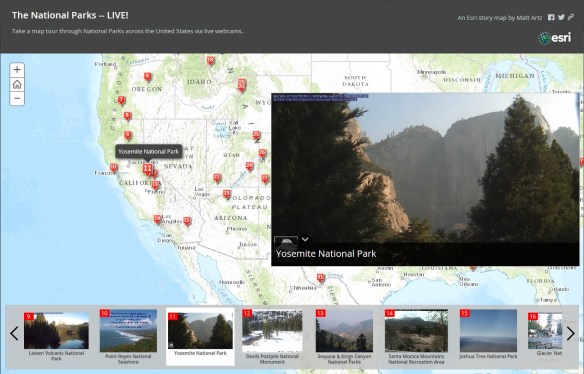
Want to know what Yosemite National Park looks like right now?  I found this interesting app that takes you on a map tour of our National Parks via live webcams.

nationalparkslive

I found some of the webcams not working or displaying an old image, but the ones that do work give a great picture of that area about the time you load the app.  I found if you reload the app a few minutes later, those webcams that are working will update their video feed.  Pretty cool.

National Hydrography Dataset (NHD) in ArcGIS Online

How to use the National Hydrography Dataset (NHD) in ArcGIS Online by Al Rea

Have you ever wanted to get a very quick view of what’s in the NHD for an area that you haven’t downloaded?  Even if you have the data on your hard drive, I’ve found the quickest way to see the basic NHD features is through the ArcGIS Online (AGOL) viewer. I’ve made a very simple web map in AGOL that accesses an NHD dynamic map service from The National Map (TNM). To give it a try, open this link: http://bit.ly/1puvHOn

Zoom to your area of interest. You can use the standard map zoom tools, or type in a place name or street address in the search box in the upper right of the window. You need to be zoomed in to a scale where the NHD streams can be displayed reasonably. If you don’t see any streams on the map, click on the “plus” symbol in the upper left corner of the map to zoom in more. Notice that in the legend there is a scrollbar once you’re zoomed in so that streams begin to display. The NHD streams are called “Flowline – Small-Scale” or “Flowline – Large Scale”, and appear at the bottom of the legend. You will need to zoom in so that the scale bar in the lower left corner of the map shows one mile or less to see the ephemeral streams, which are in a dashed brown line style. (Note that ephemeral streams are not shown in all areas.) Intermittent streams are shown in a light blue dashed line style. If you have used this service in the past, you may notice that the symbology has changed recently.

There are several other map services from The National Map that might be of interest to you. A listing can be found here: http://viewer.nationalmap.gov/example/services/serviceList.html. You can bookmark that URL, or just remember this: Search for The National Map, go to the main page, and on the left under Products and Services, click on the Framework Web Feature Services link. You should be able to open the ArcGIS Online map above without having an AGOL login account. If you do have an account, you can save the map as your own and customize it as you like. The TNM services listed above may also be added to your map, along with anything else that is out there on the web.

Trying Out 64-bit Background Geoprocessing for ArcGIS Desktop

ArcGIS Desktop is a 32-bit application. Background processing was introduced at the 10.0 release which allowed you to run geoprocessing tasks as a background process. This freed you up to do other things while your process was working away in the background. However, this background process still ran in the 32-bit world.

At version 10.1 SP1, 64-bit background geoprocessing was introduced. If you had a 64-bit PC, you could install this extra piece of software to take advantage of your 64-bit architecture.

Installing 64-bit background geoprocessing will replace your current 32-bit background geoprocessing. All scripts, models, and tools which execute in the background will use a 64-bit process. Your biggest benefit when using 64-bit background processing is that your large 64-bit processes can take advantage of more memory (if available) than when using 32-bit processes (the 3gb barrier).

So let’s get started. First, you will need a 64-bit PC that has ArcGIS Desktop 10.1 or higher installed on it. You will also need a process that takes some time to run, so you can compare before and after installing the 64-bit background geoprocessing software.

I chose to use ArcCatalog 10.2 in my test. Make sure to enable Background Geoprocessing in the Geoprocessing Options menu (accessed under Geoprocessing > Geoprocessing Options).
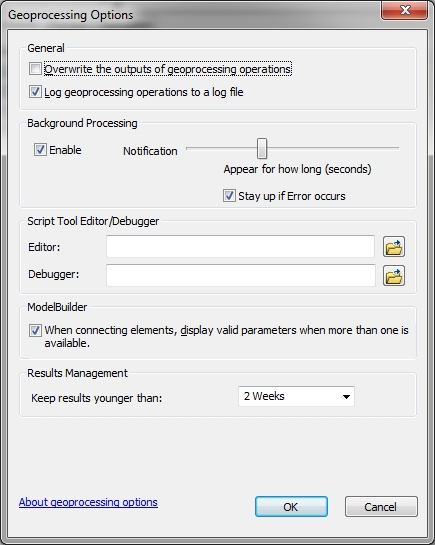
64bit-settings

For my test, I chose to use the Intersect Tool under the Geoprocessing pulldown menu in ArcCatalog.
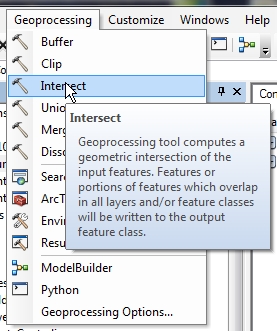
64bit-intersect

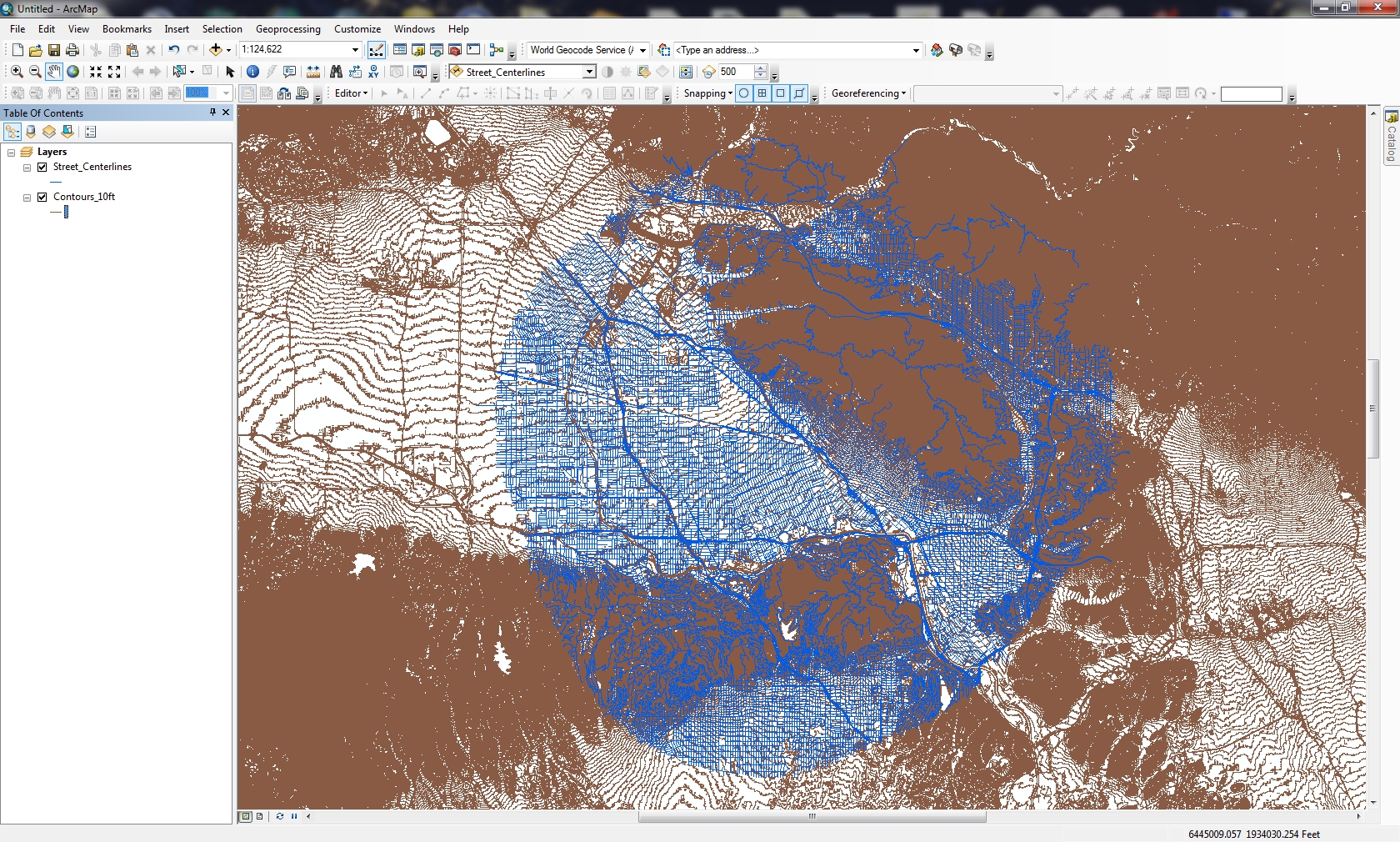
I will be intersecting a 5 mile buffer of street centerlines from the City of Burbank with 10 foot contour lines from all of LA County. There are 28,817 records (6.10mb) for the street centerline data, and 1,131,734 records (2.34gb) for the contour lines.
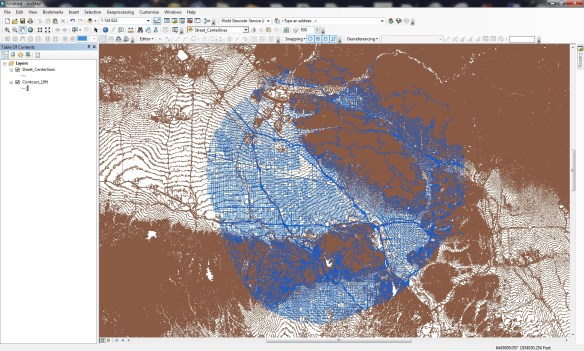
64bit-arcmap

Why would I want to do this? I don’t know, but I wanted two large data sets to try this on.

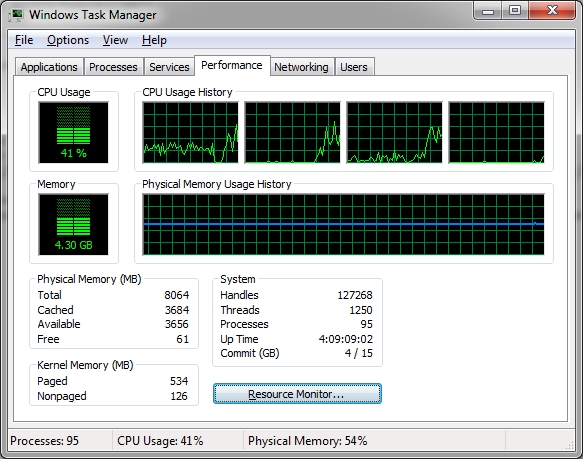
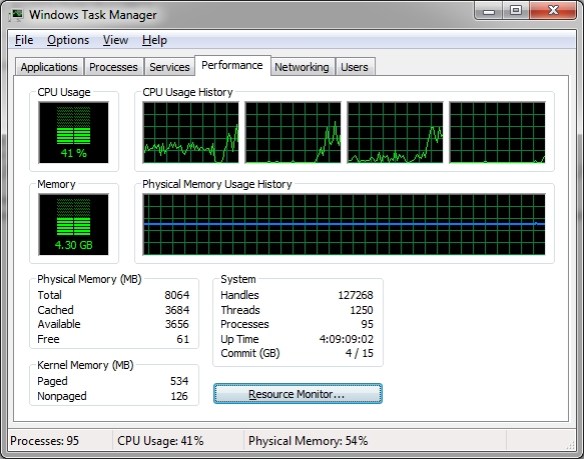
After adding the two data sets to the Intersect Tool, I ran the tool and it took off running in the background.  Bringing up the Windows Task Manager shows my CPU and memory usage during the run.
64bit-process1

I could see the process seemed to only take up 3 of the 4 CPU cores and memory usage was constant.  I had other programs open at the time so memory usage was up more than usual.  Once the tool finished, the results could be displayed in the Geoprocessing Results window (accessed under Geoprocessing > Results).
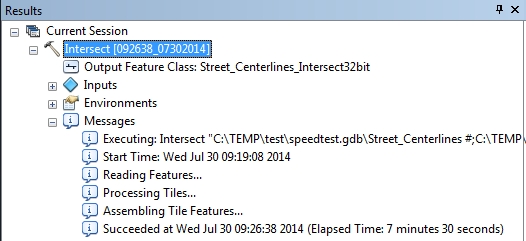
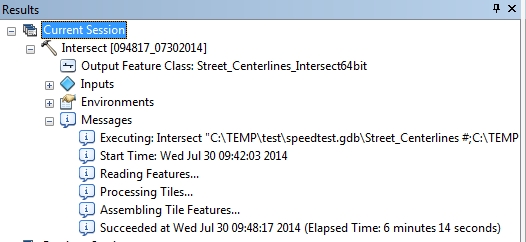
64bit-results1

The intersect process took 7 minutes and 30 seconds to complete using 32-bit background geoprocessing.

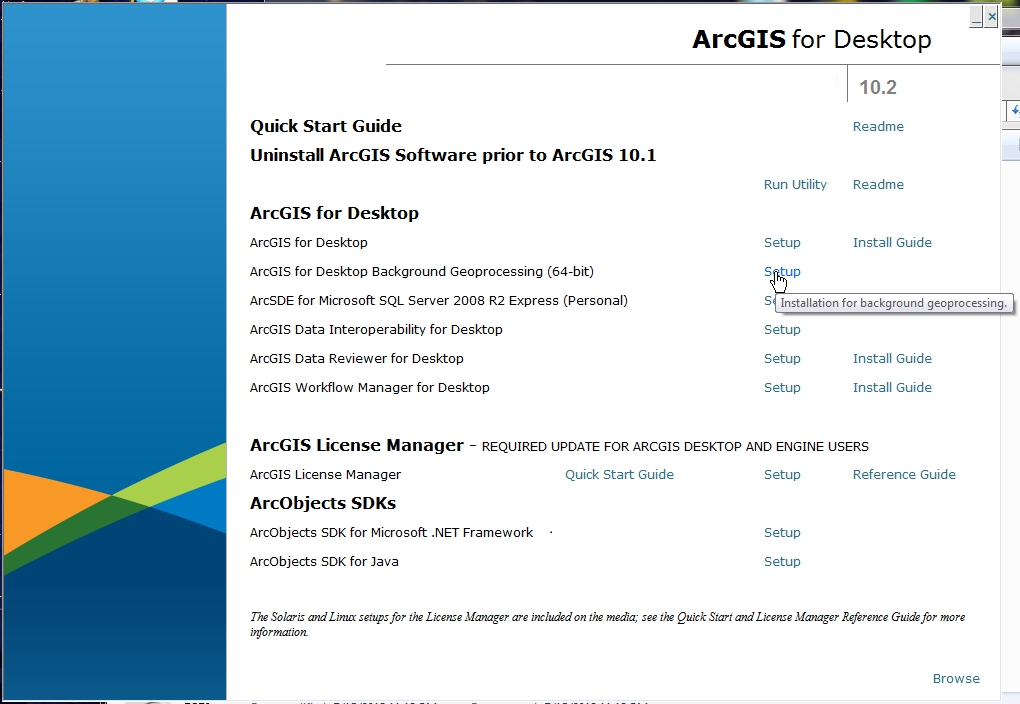
Ok, so now let’s install the 64-bit Background Geoprocessing software. Close all ArcGIS applications first. Find your ArcGIS Desktop CD or you can download just the 64-bit Background Geoprocessing install file from ESRI’s customer care site.  I have the CD, so I start it up and choose 64-bit Background Geoprocessing.
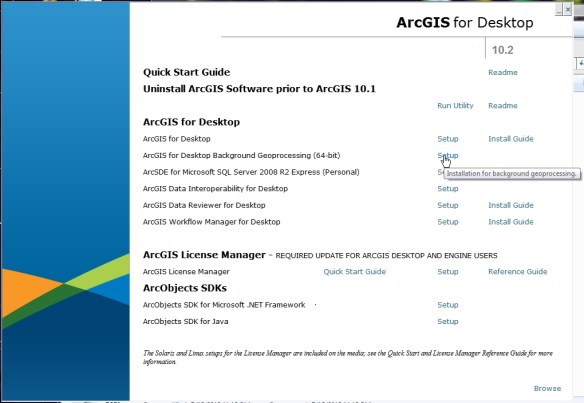
64bit-install

During the install, two things happen. The 64-bit binaries for Desktop are installed under your_arcgis_software_location/ArcGIS/Desktop10.2/bin64 and 64-bit Python is installed under your_python_directory/ArcGISx6410.2. I will talk about Python later and things you should be aware of after this install.

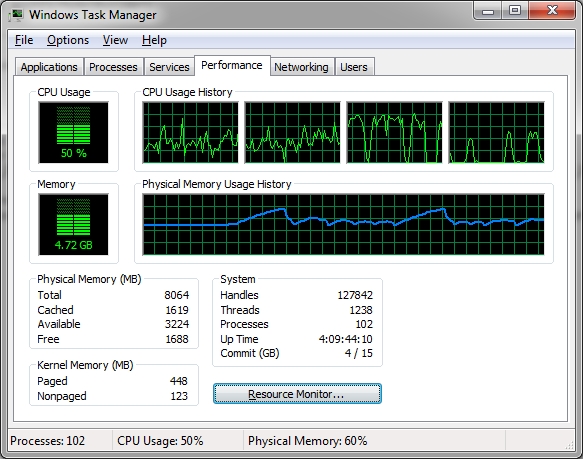
Now with 64-bit background geoprocessing installed, I startup ArcCatalog and run the Intersect Tool again to see if processing is faster.  While it ran, I did notice all 4 CPU cores were utilized, CPU usage went up, and more memory use and fluctuation.
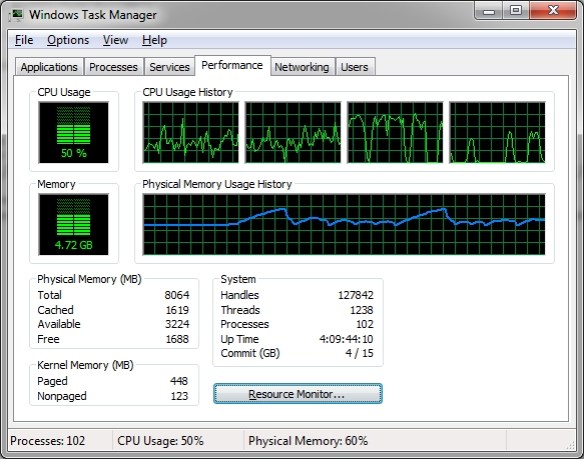
64bit-process2

And here are my results:

64bit-results2

My process ran a little faster lasting 6 minutes and 14 seconds, or 1 minute and 16 seconds faster. An almost 17% improvement.  Frankly I was expecting something like half the processing time. Maybe a better test would be using a 32-bit PC and compare to a 64-bit PC. I just had my 64-bit PC to compare both, so maybe it was helping the 32-bit process a little.  Not sure.  Please post a comment if you have an idea why.  I have heard that with 64-bit processing you can see a 20% improvement.

Now for Python. As stated earlier, the 64-bit version of Python gets installed as well. This is for the geoprocessing tools in ArcGIS Desktop. If you are into writing Python scripts, and you want to take advantage of 64-bit, you will need to make sure to run your scripts against 64-bit Python.

Typically the last version of Python installed, by default, will be the one you execute against when double clicking a python script from Windows Explorer. If you last installed 64-bit Background Geoprocessing, you will probably be executing against 64-bit Python. You can always change which program executes when double clicking a file in Windows.

When I open my Python window, I see that it is running the 64-bit version.

64bit-python64

Keep in mind that if you installed 3rd party Python tools, you will need to get the 64-bit versions. For example, if you installed SciPy, you will need to download and install the 64-bit version as well.

Also, if your background processes (or stand alone Python scripts) accesses data in an Enterprise Geodatabase, like SQL Server or Oracle, you will need to install the 64-bit client libraries for those databases on your PC so the process/script can connect to those databases.  ArcGIS Desktop will continue to use the 32-bit libraries, and background processes/stand alone Python scripts will use the 64-bit libraries.

Lastly, if you uninstall the 64-bit Background Geoprocessing program, I found that when I tried to double click a Python script, it could not find the 32-bit Python program.  I had to re-associate .py files to the 32-bit executable.  ArcGIS Desktop seemed to work fine though.

If you have not taken advantage of 64-bit Background Geoprocessing for ArcGIS Desktop, you really should. Even though my simple test showed it helped a little, anything I can do to make my processes run faster, even by a minute, will help in the long run. Give it a try and see if it helps you out. For more info, visit the 10.2 Help on Background Geoprocessing.  -mike

2014 National Transportation Atlas Database

The 2014 National Transportation Atlas Database, which has GIS data for transportation, was released last week. It is available for free on DVD from the U.S. Department of Transportation.

The DVD is a set of nationwide geographic databases of transportation facilities, transportation networks, and associated infrastructure. These datasets include spatial information for transportation modal networks and intermodal terminals, as well as the related attribute information for these features. Metadata documentation, as prescribed by the Federal Geographic Data Committee, is also provided for each database.