GISP or Not?

Well, it looks like the GIS Certification Institute has finally settled on their plan to change the GISP certification program.  Effective July 1, 2015, all professionals applying for their initial GISP certification will be required to take and pass the GISCI Geospatial Core Technical Knowledge Exam, now being developed,  in addition to meeting the current standards for certification via a portfolio based review based on ethics agreement,  education, experience, and professional contributions.

Already have a GISP badge?  All current professionals holding GISP certification with a recertification date after July 1, 2015 will recertify for a 3 year period, and will pay an annual renewal fee of $95 for each of the three years of the new recertification period.  The portfolio points for continuing education and service to the profession required for the 3-year recertification will be reduced proportionately from the current 5 year requirements.  All professionals certified or recertified before July 1, 2015 will remain certified under the current 5 year recertification policy and fees until the next certification expiration date and then will begin the new 3-year renewal and recertification process.

The cost for certification will change too, from $250 every 5 years to $450 every 3 years.  Let’s say you want to be in this GIS profession for 25 years.  Under the current system without considering the new system, you would have paid $1,250 over your lifetime.  Under the new system, you will have paid $3,750.  That is a 300% increase!  For a comparison, our Engineers only pay $125 every 2 years for certification!

More details here.

Is getting a GISP worth it?  That is up to you and what you want to do.  I would expect that if you worked for a GIS consulting company, they would want their employees to be GISP certified to make the company more marketable.  In Education, maybe.  In government at the management level, most jobs I’ve seen that even mention it have “GISP preferred” or “GISP a plus”, but I suspect that more will start requiring them and it might make sense to get one if you want the job.  And if you can, try and get your current employer to pay for it!

I will not interject my personal opinion about the GISP, other than when I look at hiring someone, I don’t care if you have a GISP or not.  Anyone can take a test or attend conference.  It is what you know and what you have done that counts before I decide to hire you.  Save your money!  -mike

ArcMap: Dealing with NULLs

NULL values in GIS data can trip you up if you don’t know how to deal with them.  A NULL value is not the same as a blank (empty) value, and actually takes up 1 bit more of space than an empty value.  Allowing a field to be NULL introduces an additional state that you would not have if the field was created to not allow NULLs.  And yes, you can have NULLs in numeric fields too!

Why have a NULL value in your data?  Usually this is used to mean “not set” or “uninitialized”.  A good example would be an employee database with a termination date field that is set to NULL when the employee is new.  Another example would be an elevation field.  You could use a NULL value to represent “not known”, since zero is a valid elevation.  More than likely you have fields that allow NULLs because someone created them not paying attention to the defaults.

So how do you specify a field to allow NULLs or not?  Open ArcMap (I’m using version 10.2.2) and bring in some data from a geodatabase.  Then open the data’s attribute table and select “Add Field…” from the Table Options icon.

nulls1

Note by default in the Field Properties that “Allow NULL Values” is set to “Yes”.  If you do not want NULLs, set it to “No”.  If you set it to “No” and do not specify a “Default Value”, then Text fields will default to a blank (empty) value and numeric fields will default to zero.  Also, keep in mind that you can add a field with “Allow NULL Values” set to “No” only if your feature class or table is not populated yet with records.

So let’s take a look at some test data I created with some fields that allow NULLs.

nulls2

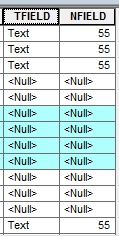
As you can probably guess, the field TFIELD is a text field and NFIELD is a numeric field.  Note some records have NULL values while others have data.

Using the Select By Attributes tool, I can select NULL values in the TFIELD by constructing the following SQL expression.

nulls3

The records with NULL in the TFIELD are selected.

nulls4

If I wanted to select everything but NULL, I would have used this SQL expression.

nulls5

nulls6

Numeric fields work the same way when selecting NULLs.

nulls7

nulls8

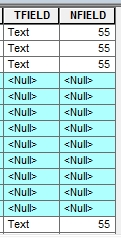
Now let’s take a few records and calc the TFIELD value to blank.  First I select a few records.

nulls9

Then right click on the TFIELD name in the attribute table and select “Field Calculator…”.  Then in Field Calculator I specify TFIELD = “” (that is two double quotes with no space between them).

nulls10

Note the values change from NULL to blank.

nulls11

Now let’s select NULL values in TFIELD again with the Select By Attributes tool using “TFIELD IS NULL”.  Look what happens.

nulls12

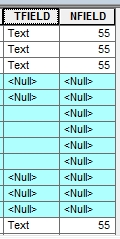
Note the blank records were not selected.  This shows that blanks are not the same as NULLs.  You have to be careful of this.  If you wanted all blanks and NULLs, try this expression in the Select By Attributes tool.

nulls13

Note in this tool I had to use two single quotes with no spaces between for the SQL expression.  This selects all NULLs and blanks.

nulls14

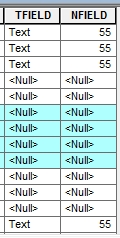
What if I wanted to calc a NULL value to a field?  First I will select some records, like my blank values in the TFIELD, then using the Field Calculator I specify TFIELD = NULL.

nulls15

nulls16

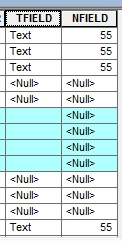
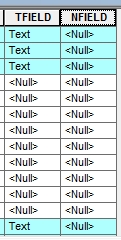
I can do the same for the numeric field.  First I will select all records with the value of 55.

nulls17

Then using the Field Calculator I specify NFIELD = NULL.  All values of 55 are changed to NULL.

nulls18

So there you have it.  You are now an expert with dealing with NULLs and hopefully when you setup your data, you will know when to use them and NOT NULL!

Rent or Own in SoCal?

Looking to buy a home?  Or should you just rent?  Here is a neat little map app from LA Times showing where you can afford to live.  You enter your household income, percent of income you want to dedicate to housing, a down payment you can afford to place on a house if you were buying, and the length of mortgage in years.  Once calculated, a nice map is displayed showing how much you are willing to spend on housing and the areas that are cheaper to own, cheaper to rent, or difficult to afford.  Areas are divided by zip codes.  Hover over an area to get median home prices, monthly home costs, and median rent.

rentown

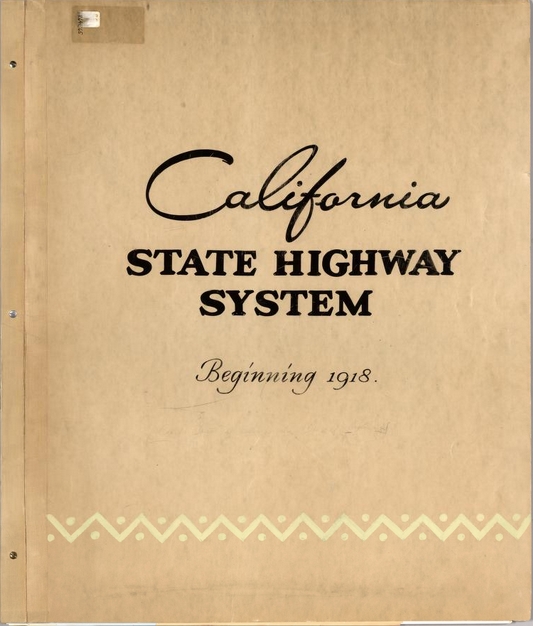
California State Highway System 1918-1990

Check out this historical atlas of the California State Highway System.  The atlas has a reversed chronological assembly of official California highway maps from 1990 back to 1918.  The maps are bound together with a custom cover and include regional enlargements, illustrations, descriptive text, route descriptions, and construction and funding status.  Download the maps in their high resolution glory!

cal_hwy_system

ESRI GeoNet Contest

Looks like ESRI is running a little contest on their GeoNet site.  You earn points by completing “missions”, like answering questions, getting replies marked as helpful, and contributing content.  First place grand prize is a MVP GeoNet Badge, Certificate of Achievement, choice of either ESRI UC Conference registration or Dev Summit Conference registration, and a choice between an Apple iPad or Microsoft Surface Tablet.  There are also second and third place prizes as well.

Though I think this is ESRI’s way to get more people to participate on GeoNet, you cannot pass up that free conference pass and iPad!  Good luck!