

From time to time I encounter the issue of a text field that is too small. A great example would be a street name field that was fine for a while, but now you have new street names that require more characters. Here are a few examples on how to change the field length. I will be using ArcGIS 10.2.2 and a feature class in a file geodatabase to demonstrate.
The Traditional Way
Open the feature class in ArcMap and bring up the attribute table. Below is a feature class representing schools.

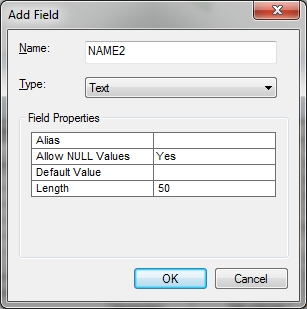
Add a new text field to the table with more characters.
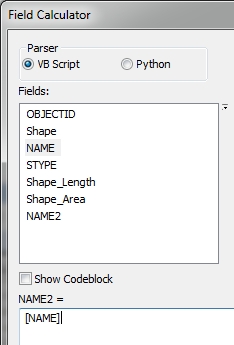
Right click on the new field name in the table and select the field calculator option to calc the new field to the old one.
And finally right click on the old field name and delete it. Here is mine.
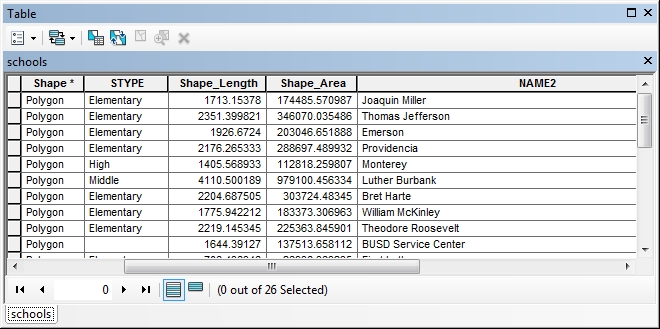
What I don’t like about this method is that I could not reuse the field “NAME” and had to create “NAME2”. Also I liked the original order, and now my field is at the end of the table. Sure, I could do it again by adding back the field name “NAME” and recalcing again, but my field is still at the end. Yes you can reorder fields for display in ArcMap, but it does not do anything to the real order of the fields in the geodatabase … and that bugs me! So on to the second option.
The Feature Class to Feature Class Tool
A better way of doing this is by using the Feature Class to Feature Class tool. The tool allows you to change the field mapping, thus allowing you to change the field length and keep the field name and position if you want. You can find the tool by doing a tool search. Open the tool and load in your input feature class.
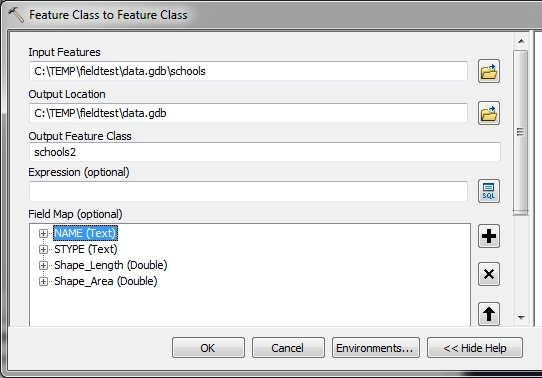
You have to specify a new output feature class. Also note the fields that are listed in the field map section. Right click on the field you want to change the length of and select Properties.
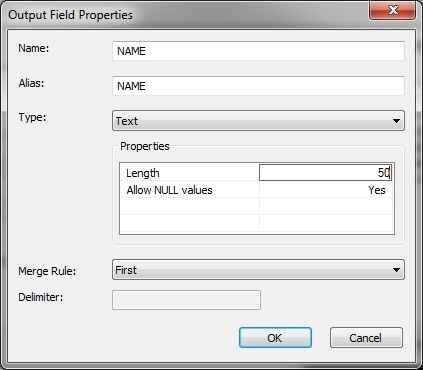
Change the Length property and click OK. Then click OK on the tool. A new feature class is created with the larger field. Just to verify, you can use ArcCatalog to view the field information.
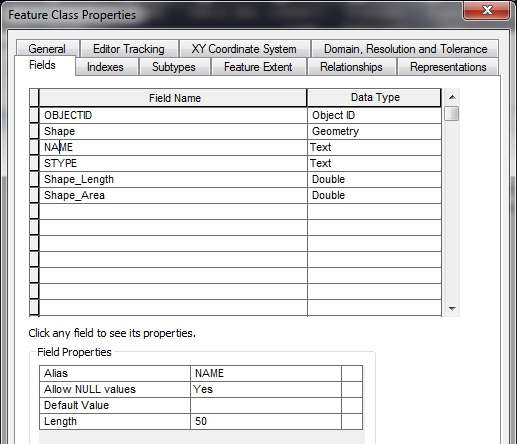
Field mapping with the tool allows you to shuffle around the fields, rename them, or remove ones you do not want as well. The down side? A new feature class has to be created, which might be an issue if you have millions of records and limited space, however you probably don’t so it works out fine.
After the tool is done, you can delete your old feature class and rename the new one to whatever you want.
So now that leaves the last option … a python script that will do this.
The Python Script
# Change a text field length

# Import arcpy module
import arcpy

# Overwrite exising output
arcpy.env.overwriteOutput = True

# Setup feature class and field info
infc = "c:/temp/fieldtest/data.gdb/schools"
outloc = "c:/temp/fieldtest/data.gdb"
outfc = "schools2"
fieldname = "NAME"
fieldlen = 50

# Setup field mappings
skipfields = ["OBJECTID", "FID", "Shape"]
fms = arcpy.FieldMappings()
fields = arcpy.ListFields(infc)
for field in fields:
  if field.name in skipfields:
    pass
  else:
    fm = arcpy.FieldMap()
    fm.addInputField(infc, field.name)
    if field.name == fieldname:
      newfield = fm.outputField
      newfield.length = fieldlen
      fm.outputField = newfield
    fms.addFieldMap(fm)

# Copy feature class with new field mappings
arcpy.FeatureClassToFeatureClass_conversion(infc, outloc, outfc, field_mapping=fms)

# All done!
print "Done!"
So let’s step through this. The arcpy module is imported and we set our overwrite output to True so we can rerun this script and overwrite our output feature class.
Next are some variables that you can modify. The input feature class “infc”, the output location “outloc”, the output feature class name “outfc”, the text field “fieldname” that we want to change the length of, and the new field length “fieldlen”.
Next, we setup field mappings, but we only want the non-system type fields. Fields like OBJECTID, FID, and Shape are maintained by ArcGIS, so we don’t want to mess with them. A list of fields we want to avoid, “skipfields”, is set, a blank field mappings “fms” is set, and we collect all the fields in the input feature class and store them in “fields”.
Next, we loop through all the fields and check if each one is a field we should skip. If so, we do nothing “pass”. If not, we setup a blank field map “fm”, add all the field information to it (field type, length, etc.) from the field in the input feature class, then check if the field is the one we need to change. If so, we make a new field variable “newfield” set to the current field map, change the length property of the “newfield” to the value we set in “fieldlen”, then reset the current field map to our “newfield” setting. We then add the field map to the field mappings “fms”. Think of the field mappings as the list of fields and their properties, while a field map is the properties of one field.
Once the loop is done building the field mappings “fms”, it is used in arcpy.FeatureClassToFeatureClass_conversion to create our new feature class “outfc”.
Give the script a try and see if it works for you. One thing you could do with the script at the end is to rename or delete the old input feature class and then rename the new output feature class to the old name. Just a thought! -mike





 SoCalGIS.org